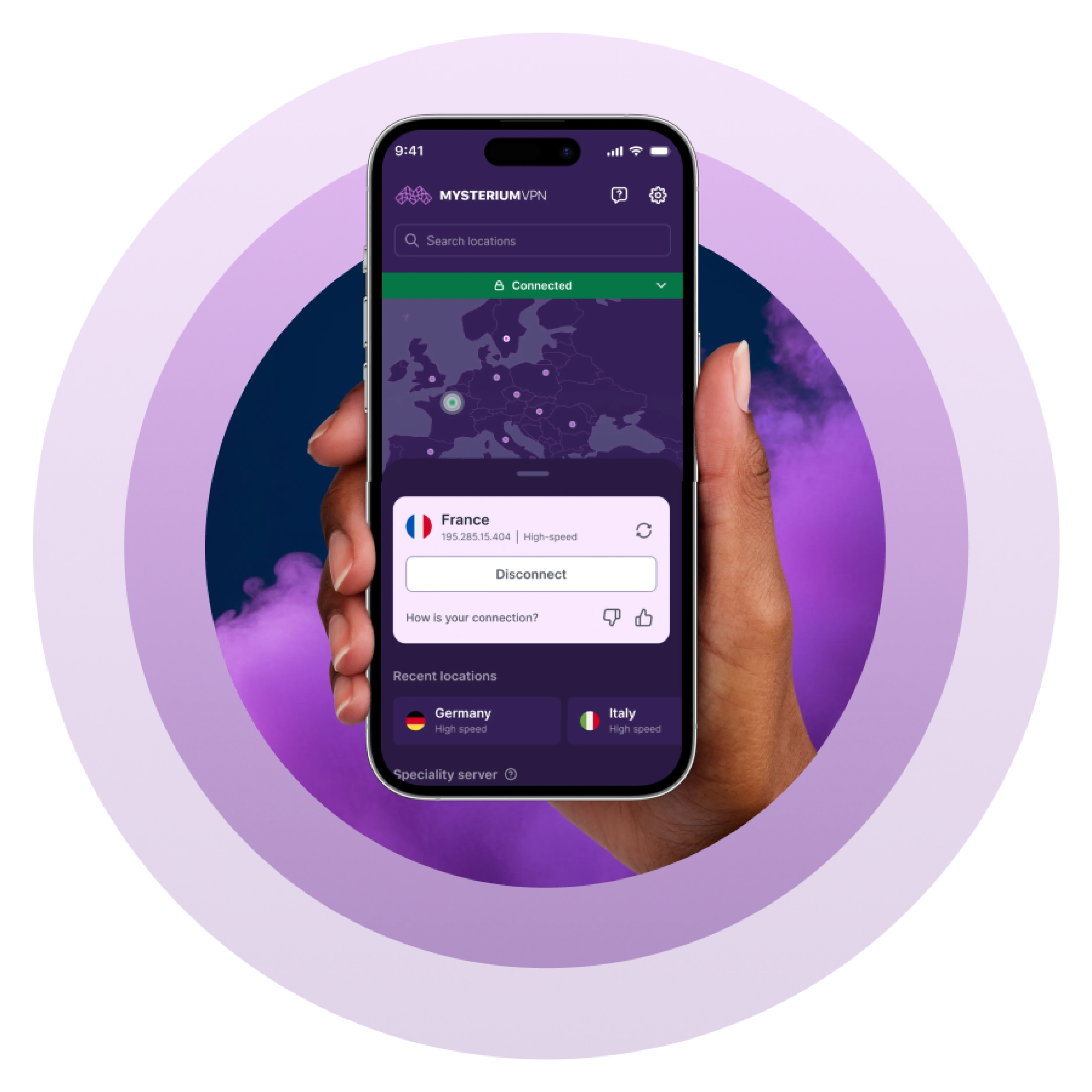
VPN for Safari – Stay Private While You Browse
- Protects your Safari traffic with end-to-end encryption.
- Works flawlessly on iOS and macOS with minimal setup.
- Hides your IP address, making your browsing anonymous.


Why Do You Need a VPN for Safari?

Encrypt Your Internet Traffic
Safari doesn’t encrypt your connection, so your ISP can technically still monitor what websites you visit. Mysterium VPN protects your Safari traffic by routing it through an encrypted tunnel, making your activity unreadable to third parties like your ISP, network administrators, or hackers.

Hide Your IP Address From Trackers
Websites and advertising companies use your IP address to track and identify you. Mysterium VPN prevents this by replacing your real IP address with one from a totally different region. This helps you stay anonymous and prevents third-party tracking while you browse with Safari.

Access Blocked or Censored Websites
If you’re in a region where certain sites or services are blocked or censored, a VPN helps you bypass those restrictions. Using Mysterium VPN makes it even harder for governments or networks to block your access to these websites, giving you open browsing freedom on Safari.

Stay Private on Public Wi-Fi
Public Wi-Fi is a hotspot for data theft. Even with Apple’s security features, your sensitive data can still be intercepted. A Mysterium VPN connection encrypts your full internet connection, protecting your Safari sessions and other apps from prying eyes on unsecured networks.
Does Safari have a VPN?
No, sadly, Safari doesn’t have a built-in VPN service. While Apple devices prioritize your privacy, their Safari browser doesn’t encrypt your internet traffic or reroute your IP address.
Instead, Safari offers features like Intelligent Tracking Prevention (created to minimize cross-site tracking of users by limiting cookies and other website data) and optional tools like iCloud Private Relay (more on that later).
While these features are a great starting point, they’re not all powerful, especially if you’re looking to change your IP address, encrypt all of your Safari web traffic, or avoid ISP tracking or government surveillance.
That’s where Mysterium VPN comes in to save the day. It encrypts your Safari traffic at the device level, not just inside the browser. As a result, everything you do while connected to a VPN is totally private, even from Apple.
How To Use VPN on Safari
Setting up a VPN connection on iPhones and Mac computers is really simple – here’s how you can do that on both devices:
iPhone
To set up a VPN for iOS:
- Choose a plan on our website and create an account.
- Download Mysterium VPN from your phone’s App Store.
- Open the app and log in.
- Browse the list of suggested locations, or use the search bar to find a specific location.
- Click connect, wait a second, and enjoy your new virtual location.
The first time you connect, your phone may prompt you to allow VPN permissions or adjust a few system settings; this is completely normal. Your device is simply making sure that you trust the VPN connection. Just follow the on-screen instructions, and you’ll be securely connected in seconds.
Mac
To set up a VPN for Mac:
- Choose a plan on our website and create an account.
- Download Mysterium VPN from your Mac’s App Store.
- Open the app and log in.
- Browse the list of suggested locations, or use the search bar to find a specific location.
- Click connect, wait a second, and enjoy your new virtual location.
During your first VPN connection, your computer may prompt you to allow VPN access. This is completely normal; it just means your system wants to confirm you trust the new VPN connection. Go ahead and follow the on-screen instructions to proceed.
Is Apple Private Relay a VPN?
No, the iCloud Private Relay isn’t really the same thing as a VPN. While both of these privacy tools hide your IP address and encrypt web traffic, that’s about it. If you’re eager to learn more, we’ve created a guide that goes into more detail about both of them.
Apple Private Relay vs VPN
Here’s a comparison of the main features between Apple’s Private Relay and a VPN provider.
| Feature | iCloud Private Relay | VPN |
| Traffic coverage | Safari + Apple services only | All internet traffic |
| Device support | Apple devices only | Multiple devices and OSs |
| IP address masking | Yes (general region only) | Yes (you choose server location) |
| Encryption | Safari traffic only | All internet traffic |
| App support | No | Yes (all apps) |
| Manual setup | Minimal | Required (app or manual setup) |
| VPN server choice | No | Yes (choose from many locations) |

How To Choose the Best VPN for Safari
When you’re selecting a VPN for your Safari browsing, you should look for product features that enhance privacy, speed, and device compatibility. Here are some examples:
- No logs policy: Your true privacy starts with no tracking from anyone, including your VPN provider.
- Safari compatibility: Your VPN should work well with both iOS and macOS without any hiccups while browsing.
- Kill switch: This safety feature prevents any accidental data leaks if your VPN connection breaks suddenly.
- Robust encryption: Look for a modern VPN protocol like AES-256 or WireGuard, which are both fantastic security choices.
- Fast speeds: You shouldn’t experience any slowdowns while you’re streaming, browsing, or working remotely.
- Money-back guarantee: If you’re unsure about a product or service, a money-back guarantee is a great way to test the waters before investing any money long-term.
- Residential IP addresses: Many websites now block standard VPNs that use datacenter IPs. Residential IPs help you avoid detection and maintain open access.
- Multi-device support: You should be able to use your VPN account across multiple devices, like your iPhone, MacBook, and iPad, without requiring separate subscriptions.
Choosing a VPN with these features ensures your Safari browsing remains private, seamless, and secure across all your Apple devices. For more ways to protect your online activity across different platforms and scenarios, visit our VPN use cases page.
Common VPN Issues on Safari and How to Fix Them
Using a VPN with Safari enhances your privacy and security, but it’s not always seamless. Even with a well-built solution like Mysterium VPN, certain technical issues can arise.
These problems are often the result of how VPNs interact with Apple’s network settings, browser behaviors, or content filtering systems. Below are the most common VPN-related issues Safari users encounter, along with clear explanations and actionable fixes.
Safari Not Loading Pages with VPN On
Often caused by DNS resolution conflicts or Safari blocking content due to network inconsistencies.
- Clear Safari cache and website data.
- Restart Safari and the VPN app.
- Switch to a different VPN node or location.
- Disable interfering browser extensions or content blockers.
Slow Browsing or Lag
Usually, the result of server congestion or a long physical distance to the VPN node.
- Choose a geographically closer or less busy node.
- Close background apps using bandwidth.
- Run a speed test to verify the base connection without the VPN.
- Try using a different VPN protocol if available (e.g., WireGuard).
IP or DNS Leaks
Happens when some traffic escapes the VPN tunnel, revealing your real IP or DNS requests.
- Enable the VPN’s kill switch.
- Use Mysterium VPN’s built-in DNS leak protection.
- Avoid other active adapters or proxy tools.
Websites Blocking VPN IPs
Caused by websites detecting reused or blacklisted datacenter IP ranges from traditional VPNs.
- Switch to a different Mysterium VPN node, ideally with a residential IP.
- Clear Safari cookies and local storage.
- Use Safari’s Private Browsing mode to reduce tracking.
- Try accessing the site from a different device or browser session.
Safari Disconnects from VPN
Triggered by macOS/iOS background restrictions, sleep settings, or battery-saving features.
- Disable Low Power Mode on iOS.
- Keep the Mysterium VPN app in the foreground during use.
- Adjust system energy settings to prevent sleep or app suspension.
- Ensure the VPN app is up to date for best compatibility.
Login or Payment Pages Not Loading
Often caused by anti-fraud systems reacting to VPN traffic or IP mismatches.
- Temporarily disconnect VPN to complete login or payment, then reconnect.
- Switch to a server closer to the website’s regional target.
- Clear Safari cache and cookies before retrying.
- Disable Safari extensions that may interfere with page scripts.

Can I Use a Free VPN for Safari?
Technically, yes, you can use a free VPN with Safari. But doing so comes with serious trade-offs that can compromise your privacy, security, and overall browsing experience.
Most free VPN services aren’t built with user protection in mind. Their business models rely on collecting user data and selling it to advertisers or third parties, which defeats the core purpose of using a VPN in the first place.
Instead of shielding your traffic, many free VPNs actually expose more of your information. Here are the most common issues users face with free VPNs:
- They may log and sell your data to third parties to make ends meet.
- Limited speed and bandwidth make Safari browsing problematic.
- Frequent disconnections and no kill switch may expose your IP address.
- Lack of macOS/iOS compatibility makes using your device challenging.
- No support or security updates means that you’re left to your own devices.
If privacy matters, a trusted, paid VPN provider like Mysterium VPN is your best bet.